Fixture Configuration
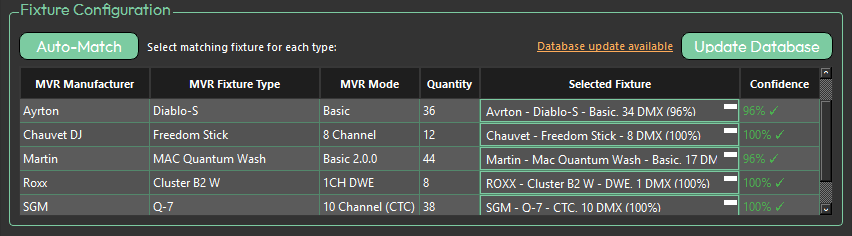
The Fixture Configuration section defines how fixtures in the MVR file are matched to fixtures in the Titan database.
Database Update
MVR Fixture Importer uses a local fixture database to match against fixtures in your MVR file. When a new database version is available, an orange Database Update Available notice will appear to the left of the Update Database button. A pop-up will also appear on launch notifying you of the update.
Clicking the orange notice will take you to the download page for the latest database file. Once downloaded, click Update Database and navigate to the downloaded file to apply the update.
MVR Fixture Importer is currently the only Livelabs Creative product that has a separate database update independent of the main application.
Auto-Match
Attempts to automatically match MVR fixtures to Titan fixtures. Intended for fast setup — matches should be reviewed before importing.
If Auto-Match cannot find the required fixture, click the dropdown in the Selected Fixture column and select Manual Search. This will open a search window where you can find and select the correct fixture manually.
Match table
| Column | Description |
|---|---|
| MVR Manufacturer | Manufacturer name as defined in the MVR file |
| MVR Fixture Type | Fixture type as defined in the MVR file |
| MVR Mode | Fixture mode as defined in the MVR file |
| Quantity | Number of fixtures of this type found in the MVR file |
| Selected Fixture | Dropdown for manual selection of a Titan fixture — contains the 10 most relevant matches. If Auto-Match is used, high-confidence matches are pre-selected |
| Confidence | Indicates how confident the importer is that the selected Titan fixture matches the MVR fixture |